High Accuracy mode and mock-location leftovers are the usual suspects.
FanDuel "Location Not Verified" on Android: The Complete Fix List
The short answer
Android fails FanDuel's location check for five main reasons: Location is off or set to Battery Saving instead of High Accuracy, the FanDuel app lacks "Allow all the time" or "Allow only while using" permission, Wi-Fi/Bluetooth scanning is off, a VPN is masking your IP, or Developer Options has mock location enabled. Fix them in that order, then force-stop the app and retry.
In this article
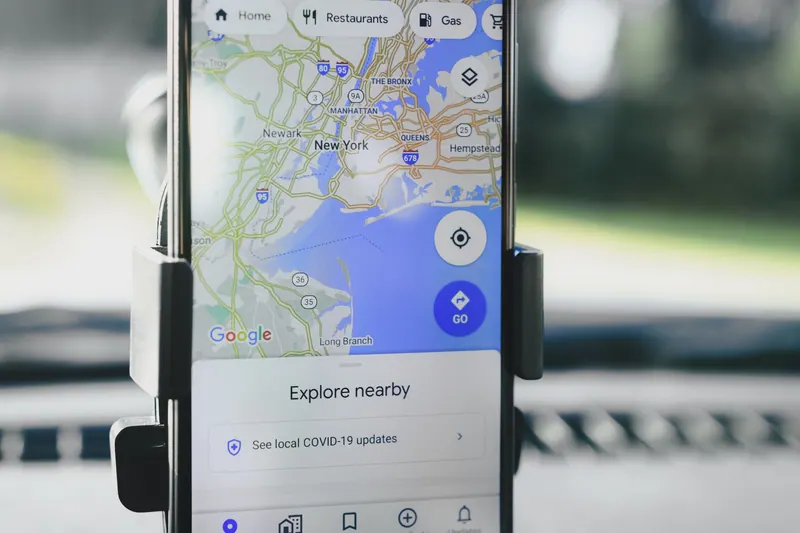
FanDuel verifies location through GeoComply before it lets you place a bet, and Android gives it more failure modes than iPhone because Android has more location settings. The check needs GPS satellites, Wi-Fi access points and your IP address to all agree — when they don't, you get "location not verified."
The fix sequence
- Settings > Location > on, then set Location Mode to "High accuracy" (called "Google Location Accuracy" on Pixel/Samsung — turn it on). Battery Saving mode uses cell towers only and is too imprecise to place you inside a state.
- Settings > Apps > FanDuel > Permissions > Location > "Allow only while using the app" or "Allow all the time" — and make sure "Use precise location" is enabled if your Android version shows it.
- Settings > Location > Location services (or Location scanning) > turn on both Wi-Fi scanning and Bluetooth scanning. These run even with Wi-Fi off and dramatically improve lock speed and accuracy.
- Disconnect any VPN — including work VPNs, ad-blockers with VPN profiles (AdGuard, Blokada) and "private DNS" setups that route traffic oddly.
- If Developer Options is on: Settings > Developer Options > Select mock location app > set to Nothing. A leftover mock-location app from an old Pokémon Go phase will fail every check instantly.
- Force-stop FanDuel (Settings > Apps > FanDuel > Force stop), reopen, and retry.
The two gotchas nobody mentions
First: dual-SIM and eSIM setups. If your data runs through a SIM registered in another state or country, your IP geolocates there even while GPS says otherwise — GeoComply reads that mismatch as spoofing. Second: rooted devices and custom ROMs (LineageOS, GrapheneOS without the right build) fail integrity checks regardless of where you actually are. There's no workaround — geolocation vendors refuse modified systems by design.
If you're legitimately inside the state and everything above checks out, the remaining cause is border proximity: GPS drift can place you hundreds of feet wrong. Move away from the state line, connect to a fixed Wi-Fi network, and the lock usually solidifies.